Saturday, December 10, 2022

CHARACTERISTICS THAT GOOD RESEARCH QUESTIONS POSSESS


CHARACTERISTICS THAT GOOD RESEARCH QUESTIONS POSSESS


1. It must be well rooted in contemporary theoretical and empirical research (know the literature)

2. It establishes the research's context, making it possible to choose the topic, the point of emphasis, the type of research evidence required to arrive at a solution, and the conclusion.

3. The question must be both worth answering (within the constraints of time, money, capacities, and resources) and be solvable.

4. Sound inquiries must allow for the development of precise hypotheses and operational definitions.

5. A researcher may pursue a particular study subject for a variety of reasons, including financial gain, career advancement, or simply because discovering the answer to the question seems intriguing. I prefer the last justification because it provides the intensity of effort necessary to get beyond all the challenges and annoyances encountered during the study process. Prior to investing a lot of time in developing a study plan or grant proposal that peers and funding agencies might find uninteresting, it is however advisable to confirm the interest of a question with mentors and outside specialists.

6. A strong research question should have theoretical and practical significance (usually weighted toward one).

7. It shouldn't try to tackle significant problems. It is a specific question within a topic, not the issue itself, so it must be clear, concise, well-defined, and to the point. It ought to enable you to delve deeper into a phenomenon than you may otherwise be able to accomplish in order to comprehend it better. The development of a research question requires focus. By the time you're ready to go on to designing the research methodology, it needs to be clearly defined.

8. Effective research produces fresh knowledge. It is not worth the time and money to conduct an investigation that simply confirms what has already been established. It's not necessary for a query to be entirely novel. If an earlier discovery could be repeated, if the findings in one community were generalizable to other populations, or if improved measurement techniques could more clearly demonstrate the correlation between two variables, these questions might be raised. If a confirmatory study corrects the shortcomings of earlier research, it is very helpful.

9. Good research questions call for much more than just doing some research. It reflects an underlying tension that is not dependent only on one or two omitted pieces of information. It ought to make you weigh the arguments and assess the various points of view. It should provide you the opportunity to develop a solution that the audience will find both fascinating and significant.

10. Good questions must be morally sound. If the study involves unfavorable physical risks or invasions of privacy, the researcher should look for other ways to get the information they need. You should consult professionals in the early stages if you are unsure whether the study is ethical.

11. "Dichotomous queries," or inquiries that can only be answered with a simple yes or no, are bad inquiries.

12. The relevance of a research subject is one of its most important qualities. Consider the potential outcomes and how each one might advance scientific understanding, have an impact on management, or direct future research as a rational way to determine relevance.

Friday, December 2, 2022

RESEARCHABLE AND NON-RESEARCHABLE QUESTIONS

 RESEARCHABLE AND NON-RESEARCHABLE QUESTIONS


 RESEARCHABLE QUESTIONS

An ambiguity concerning a topic that may be contested, investigated, and evaluated to yield valuable data is referred to as a researchable question.
A good research question also has some specific characteristics:
  1. Typically, it takes the form of an inquiry.
  2. It has a clear emphasis.
  3. It cannot be replied to with a straightforward yes or no.
  4. There should be more than one logical response to it.
  5. It takes relationships between various notions into account.
How should a researchable topic be created?
Here are five strategies for creating a compelling study topic:
  1. Look for motivation. Your research topic ought to be original, pertinent, and captivating.
  2. Be precise. Nothing drives readers off faster than imprecise, jumbled language.
  3. Don't use jargon.
  4. Make it your own.
  5. Think about your audience.

NON-RESEARCHABLE QUESTIONS

Any research question that cannot be articulated into a testable hypothesis is considered non-researchable. This does not necessarily imply that the subject cannot support further investigation. A question needs to be reframed frequently in order for distinct testable hypotheses to be developed.

Example: 

  • Is a democratic system of government the best?
  • Could crime be stopped?
  • Should using a cell phone while driving be prohibited?


Tuesday, October 12, 2021

Merits and Demerits of Google classroom


How would you like to be a part of a classroom hub where you could communicate with your learners, provide them with constructive feedback whenever they needed it, and streamline the sharing of classroom documents and assignments? Google Classroom does exactly that; it is Google’s ambitious addition to online education as well to the Learning Management System industry, and it aims to make classrooms all over the world not only paperless, but also more effective. Google Classroom is available through Google Apps for Education, as at the moment it is aimed at academic institutions only, and not corporate training. In this article, I'll share a Google Classroom review by mentioning 8 advantages and 8 disadvantages, in order to help you decide whether Google Classroom is suitable for your eLearning courses.

8 Google Classroom Advantages

1. Easy to use and accessible from all devices. 

Even if you are not a Google user, using Google Classroom is a piece of cake. Apart from being delivered through the Chrome browser, which makes it accessible from all computers, mobile phones, and tablets, it makes it really easy for you to add as many learners as you like, create Google documents to manage assignments and announcements, post YouTube videos, add links, or attach files from Google Drive. Learners will find it equally easy to log in, as well as receive and turn in assignments.

2. Effective communication and sharing.

One of the greatest advantages of Google Classroom is Google Docs; these documents are saved online and shared with a limitless number of people, so when you create an announcement or assignment using a Google doc, your learners can access it immediately through their Google Drive, as long as you have shared it with them. Furthermore, Google Docs are easily organized and personalized in Google Drive folders. In other words, you no longer need emails to share information; you just create a document, share it with as many learners as you want, and voila!

3. Speeds up the assignment process.

How about creating an assignment and distributing it with just a click of a button? And how about learners turning in the completed assignment in a matter of seconds? Assignment process has never been quicker and more effective, as in Google Classroom you can easily check who has submitted their assignment and who is still working on it, as well as offer your feedback immediately.

4. Effective feedback.

Speaking of feedback, Google Classroom gives you the opportunity to offer your online support to your learners right away; this means that feedback becomes more effective, as fresh comments and remarks have bigger impact on learners’ minds.

5. No need for paper.

There might be a day that grading papers would be impossible to imagine; Google Classroom is certainly interested in getting there as soon as possible. By centralizing eLearning materials in one cloud-based location, you have the ability to go paperless and stop worrying about printing, handing out, or even losing your learners’ work!

6. Clean and user-friendly interface.

Staying loyal to clean Google layout standards, Google Classroom invites you to an environment where every single design detail is simple, intuitive, and user-friendly. Needless to say, Google users will feel right at home.

7. Great commenting system.

Learners can comment on specific locations within pictures for a variety of online courses. Furthermore, you can create URLs for interesting comments and using them for further online discussion.

8. Is for everyone.

Educators can also join Google Classroom as learners, which means that you can create a Google Classroom for you and your colleagues and use it for faculty meetings, information sharing, or professional development.


8 Google Classroom Disadvantages

1. Difficult account management.

Google Classroom doesn’t allow access from multiple domains. Furthermore, you cannot log in with your personal Gmail to enter it; you need to be logged in Google Apps for Education. As a result, if you have already a personal Google ID, it may be frustrating to juggle multiple Google accounts. For example, if you have a Google document or a photo in your Gmail and you want to share it in the Google Classroom, you will need to save it separately in your computer’s hard drive, log out, and then log in again with your Google Classroom account. Quite a hassle.

2. Limited integration options.

Google Classroom hasn’t yet integrated with Google Calendar, or any calendar whatsoever, which may cause some problems with organizing material and assignment deadlines.

3. Too “googlish”.

First time Google users may get confused, as there are several buttons with icons familiar only to Google users. Additionally, despite enhanced integration between Google and YouTube, which significantly helps video sharing, support for other popular tools is not built in, and you may find it frustrating that you will need to, for example, convert a simple Word document to a Google Doc to work with. All in all, you will only find yourself comfortable in the Google Classroom environment as long as the tools you are using are aligned with Google services.

4. No automated updates.

Activity feed doesn’t update automatically, so learners will need to refresh regularly in order not to miss important announcements.

5. Difficult learner sharing.

Learners cannot share their work with their peers, unless they become “owners” of a document, and even then they will need to approve sharing options, which will create a chaos if they want to share a document with their, say, 50+ classmates.

6. Editing problems.

When you create an assignment and you distribute it to learners, learners become “owners” of the document and they are allowed to edit it. That means that they can delete any part of the assignment they want, which could cause problems, even if it happens accidentally.

7. No automated quizzes and tests.

One of the main reasons that Google Classroom cannot yet fully replace your Learning Management System is that it doesn’t provide automated quizzes and tests for your learners. In general, Google Classroom is more suitable for a blended learning experience than a fully online program.

8. Impersonal.

Speaking of a blended learning environment, Google Classroom has not integrated Google Hangouts, which creates a problem; online interaction between teachers and learners is only possible through Google documents. Effective education requires interaction and building relationships with learners, and online discussions are the best way to achieve this in a virtual environment. Unfortunately, there is no way to have a live chat in Google Classroom; at least, again, not yet.

Video about Advantages and Disadvantages of Google Classroom


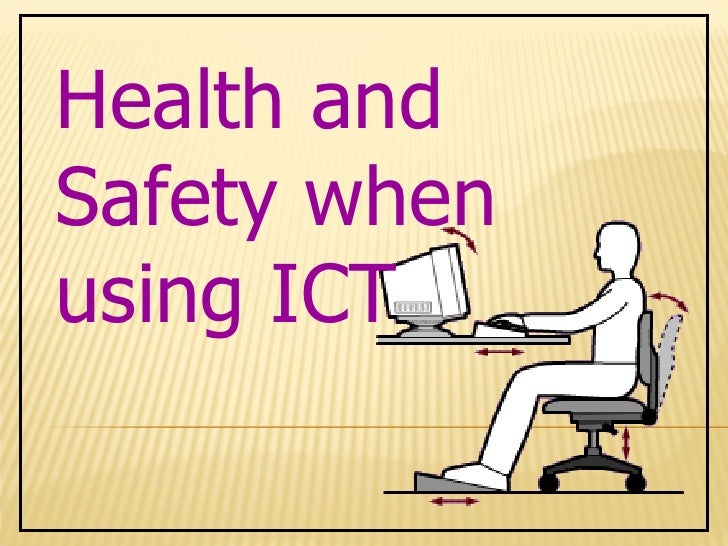
Health and Safety in using ICT


Health & Safety

Quick revise

Working with computers for long periods of time can cause:

  • Stress;
  • Eyestrain;
  • Wrist injuries;
  • Neck and back problems.

Employers can be sued if they do not take steps to protect employees.

Stress

Some of the ways that ICT systems can cause stress for workers:

  • Many people are afraid of computers and fear that they will be left behind or made redundant if they are unable to learn new ICT skills quickly enough and keep up with the younger more computer-literate generation;
  • ICT systems make information instantly available wherever you are. Mobile phones, pagers, portable computers and the Internet make it possible to work anywhere. This means that some people find it virtually impossible to forget about work and relax.
  • The amount of information that ICT systems can produce is often far too much for anyone to take in. This results in ‘information overload’, which causes workers to become stressed by the feeling that they can’t cope with the information that they are receiving. 
  • Workers can be monitored using ICT systems — the feeling of being constantly ‘watched’ caused by this can be very stressful.
Repetitive strain injury

Repeating the same physical movements over and over again can cause a condition known as RSI.

Repeated presses on the keyboard and long periods of holding and moving a mouse cause a build up of damage to the hands arms and shoulders.

Eyestrain

Spending long periods of time in front of a computer screen can cause eyestrain.

This can be avoided by:

  • Ensuring there is enough light;
  • Reducing the amount of glare;
  • Ensuring workers wear correct prescription glasses if needed.
Extremely low frequency (ELF) radiation

Computer monitors are a common source of ELF.

Some evidence suggests that working for long periods in front of a computer screen may increase the risk of miscarriage during pregnancy.

Computers, health & the law

Laws designed to protect people from workplace health hazards are administered by the Health and Safety Executive.

Legislation requires employers to:

  • Inspect workstations to make sure that they meet the required standards for health and safety;
  • Train employees how to use workstations correctly;
  • Make sure that employees take regular breaks or changes in activity;
  • Provide regular eye tests for workstation users and pay for prescription glasses

Legislation requires employees to:

  • Use workstations and equipment correctly in accordance with the training provided by their employer;
  • Inform their employer of any problems relating to Health and Safety as soon as they arise and co-operate with the correction of these problems.
Workspace design

When purchasing new equipment or designing a working ICT environment, employers must consider:

  • Lighting – workplace should be well lit;
  • Furniture – Height-adjustable swivel chairs with backrests and desks large enough to hold the computer and paperwork;
  • Noise – Work space should be quiet;
  • Hardware – Screens must not flicker and should swivel and tilt. Keyboards must be separate, moveable and fitted with wrist supports;
  • Software – This should make tasks easier;
  • The working environment – work space should be well ventilated and maintained at a comfortable temperature
This video explains about computing health and safety

Operating System ( types and features)


What is an Operating System?

An Operating System (OS) is a software that acts as an interface between computer hardware components and the user. Every computer system must have at least one operating system to run other programs. Applications like Browsers, MS Office, Notepad Games, etc., need some environment to run and perform its tasks.

The OS helps you to communicate with the computer without knowing how to speak the computer’s language. It is not possible for the user to use any computer or mobile device without having an operating system.


Operating System with Market Share


Types of Operating System (OS)

Following are the popular types of OS (Operating System):

  • Batch Operating System
  • Multitasking/Time Sharing OS
  • Multiprocessing OS
  • Real Time OS
  • Distributed OS
  • Network OS
  • Mobile OS

Batch Operating System

Some computer processes are very lengthy and time-consuming. To speed the same process, a job with a similar type of needs are batched together and run as a group.

The user of a batch operating system never directly interacts with the computer. In this type of OS, every user prepares his or her job on an offline device like a punch card and submit it to the computer operator.

Multi-Tasking/Time-sharing Operating systems

Time-sharing operating system enables people located at a different terminal(shell) to use a single computer system at the same time. The processor time (CPU) which is shared among multiple users is termed as time sharing.

Real time OS

A real time operating system time interval to process and respond to inputs is very small. Examples: Military Software Systems, Space Software Systems are the Real time OS example.

Distributed Operating System

Distributed systems use many processors located in different machines to provide very fast computation to its users.

Network Operating System

Network Operating System runs on a server. It provides the capability to serve to manage data, user, groups, security, application, and other networking functions.

Mobile OS

Mobile operating systems are those OS which is especially that are designed to power smartphones, tablets, and wearables devices.

Some most famous mobile operating systems are Android and iOS, but others include BlackBerry, Web, and watchOS.

 Functions of Operating System

Some typical operating system functions may include managing memory, files, processes, I/O system & devices, security, etc.

Below are the main functions of Operating System:


Monday, October 11, 2021

Output Devices (common devices and their functions)


Output devices 

Computer output devices receive information from the computer, and carry data that has been processed by the computer to the user.  Output devices provide data in myriad different forms, some of which include audio, visual, and hard copy media.  The devices are usually used for display, projection, or for physical reproduction.  Monitors and printers are two of the most commonly-known output devices used with a computer.

Computer output devices are all peripheral hardware, and are connected to a computer by cables, or by wireless networking.

Reasons for Having an Output Device

A computer can still function without an output device.  However, without an output device, there’s no way to determine what the computer is doing.  There is no indicator of errors, nor of the need for additional input.  For example, if you detach your monitor from your computer, the computer will still function, but it’s not going to be very helpful.

Examples of Output Devices

                                                     Monitor – This is the most common computer output device. It creates a visual display by the use of which users can view processed data.  Monitors come in various sizes and resolutions.


Common Types of Monitors

  • Cathode Ray Tube – this uses phosphorescent dots to generate the pixels that constitute displayed images.
  • Flat Panel Screen – this makes use of liquid crystals or
    plasma to produce output. Light is passed through the liquid crystals in order to generate pixels.

All monitors depend on a video card, which is positioned either on the computer motherboard or in a special expansion slot. The video card sorts out the computer data into image details that the monitors can then show.


 Printer – this device generates a hard copy version of processed data, like documents and photographs. The computer transmits the image data to the printer, which then physically recreates the image, typically on paper.

Types of Printers

  • Ink Jet – this kind of printer sprays tiny dots of ink onto a surface to form an image.
  • Laser – this type utilises toner drums that roll through magnetized pigment, and then transfers the pigment onto a surface.
  • Dot Matrix – dot matrix printers utilise a print head to set images on a surface, using an ink ribbon. These printers were commonly used between 1980 and


Speakers – speakers are attached to computers to facilitate the output of sound; sound cards are required in the computer for speakers to function. The different kinds of speakers range from simple, two-speaker output devices right the way up to surround-sound multi-channel units.


Headset – this is a combination of speakers and microphone.  It is mostly used by gamers, and is also a great tool for communicating with family and friends over the internet using some VOIP program or other.


Virus and Antivirus


Virus

A computer virus, much like a flu virus, is designed to spread from host to host and has the ability to replicate itself. Similarly, in the same way that flu viruses cannot reproduce without a host cell, computer viruses cannot reproduce and spread without programming such as a file or document.

In more technical terms, a computer virus is a type of malicious code or program written to alter the way a computer operates and is designed to spread from one computer to another. A virus operates by inserting or attaching itself to a legitimate program or document that supports macros in order to execute its code. In the process, a virus has the potential to cause unexpected or damaging effects, such as harming the system software by corrupting or destroying data.

How does a computer virus attack?

Once a virus has successfully attached to a program, file, or document, the virus will lie dormant until circumstances cause the computer or device to execute its code. In order for a virus to infect your computer, you have to run the infected program, which in turn causes the virus code to be executed.

This means that a virus can remain dormant on your computer, without showing major signs or symptoms. However, once the virus infects your computer, the virus can infect other computers on the same network. Stealing passwords or data, logging keystrokes, corrupting files, spamming your email contacts, and even taking over your machine are just some of the devastating and irritating things a virus can do.

While some viruses can be playful in intent and effect, others can have profound and damaging effects. This includes erasing data or causing permanent damage to your hard disk. Worse yet, some viruses are designed with financial gains in mind.

How do computer viruses spread?

In a constantly connected world, you can contract a computer virus in many ways, some more obvious than others. Viruses can be spread through email and text message attachments, Internet file downloads, and social media scam links. Your mobile devices and smartphones can become infected with mobile viruses through shady app downloads. Viruses can hide disguised as attachments of socially shareable content such as funny images, greeting cards, or audio and video files.

To avoid contact with a virus, it’s important to exercise caution when surfing the web, downloading files, and opening links or attachments. To help stay safe, never download text or email attachments that you’re not expecting, or files from websites you don’t trust.


Antivirus

Antivirus is a kind of software used to prevent, scan, detect and delete viruses from a computer. Once installed, most antivirus software runs automatically in the background to provide real-time protection against virus attacks.

Comprehensive virus protection programs help protect your files and hardware from malware such as worms, Trojan horses and spyware, and may also offer additional protection such as customizable firewalls and website blocking.


How does antivirus work?

Antivirus software begins operating by checking your computer programs and files against a database of known types of malware. Since new viruses are constantly created and distributed by hackers, it will also scan computers for the possibility of new or unknown type of malware threats.

Typically, most programs will use three different detection devices: specific detection, which identifies known malware; generic detection, which looks for known parts or types of malware or patterns that are related by a common codebase; and heuristic detection, which scans for unknown viruses by identifying known suspicious file structures. When the program finds a file that contains a virus, it will usually quarantine it and/or mark it for deletion, making it inaccessible and removing the risk to your device.

Representative sample

A representative sample is a tiny amount or a subset of something larger, according to the definition. It exhibits the same characteristics...